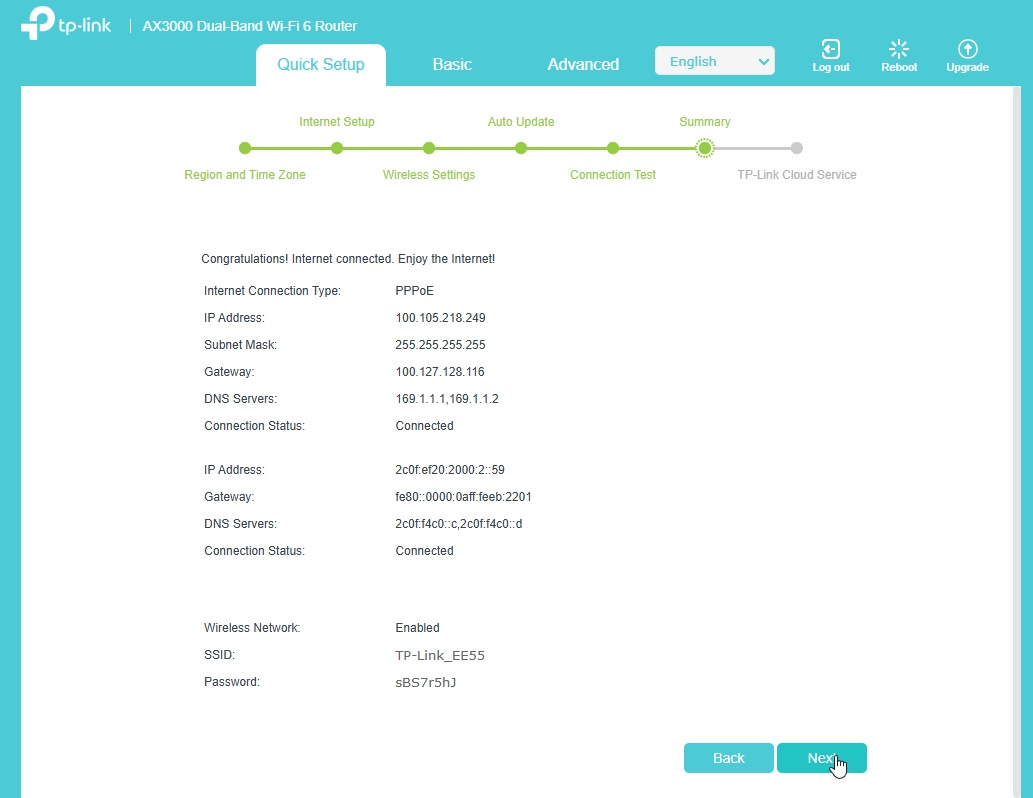
Setup your router to access the internet
The TP-Link EX511 router provides web-based access through the following url: http://tplinkwifi.net or 192.168.0.1 allowing users to easily manage and configure router settings.
Open your preferred browser (Safari, Chrome, Edge, Firefox) and enter http://tplinkwifi.net or 192.168.0.1 in the address bar.

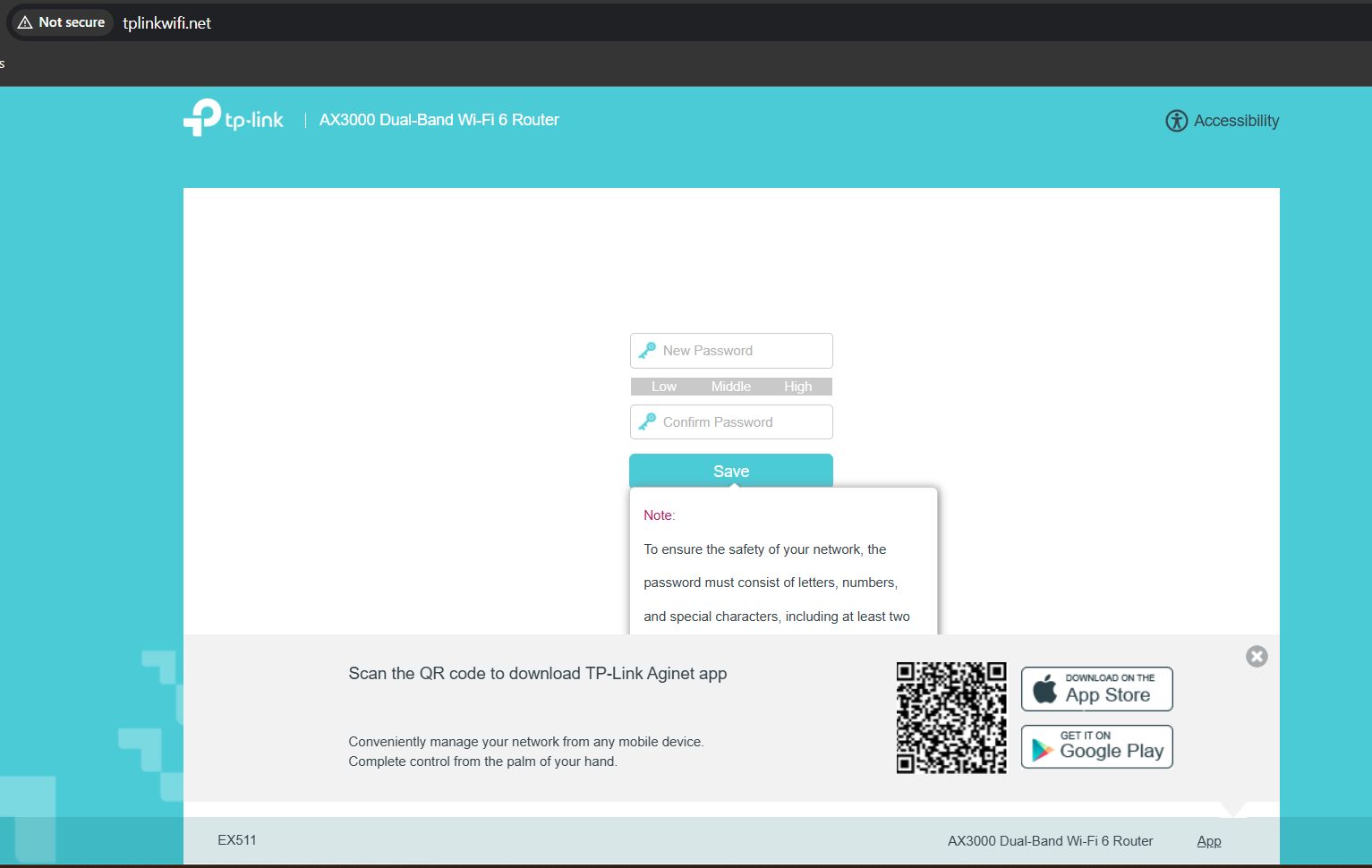
For a first-time setup, once logged in, you will be prompted to create your own secure login password for the router.
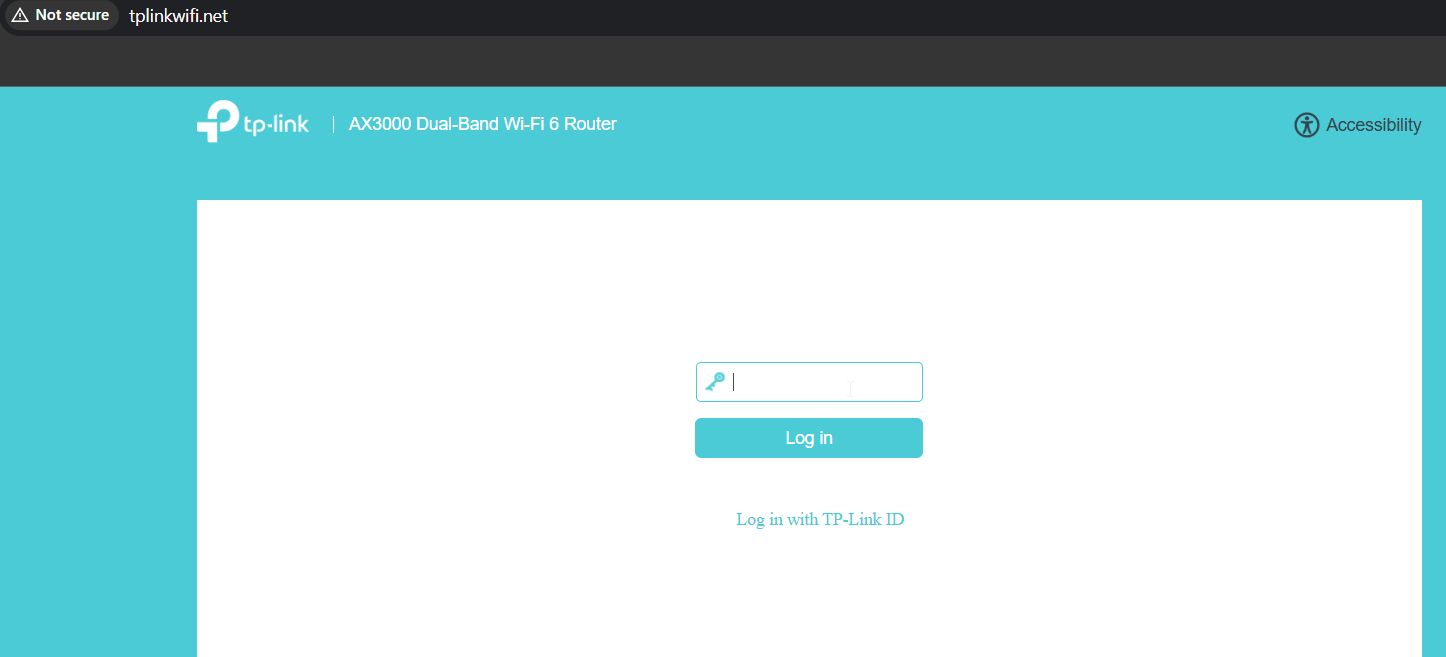
Once the password has been created, you will be prompted on the next page to enter the newly created password to log in.
Once you are logged in, you will be presented with the page shown below:
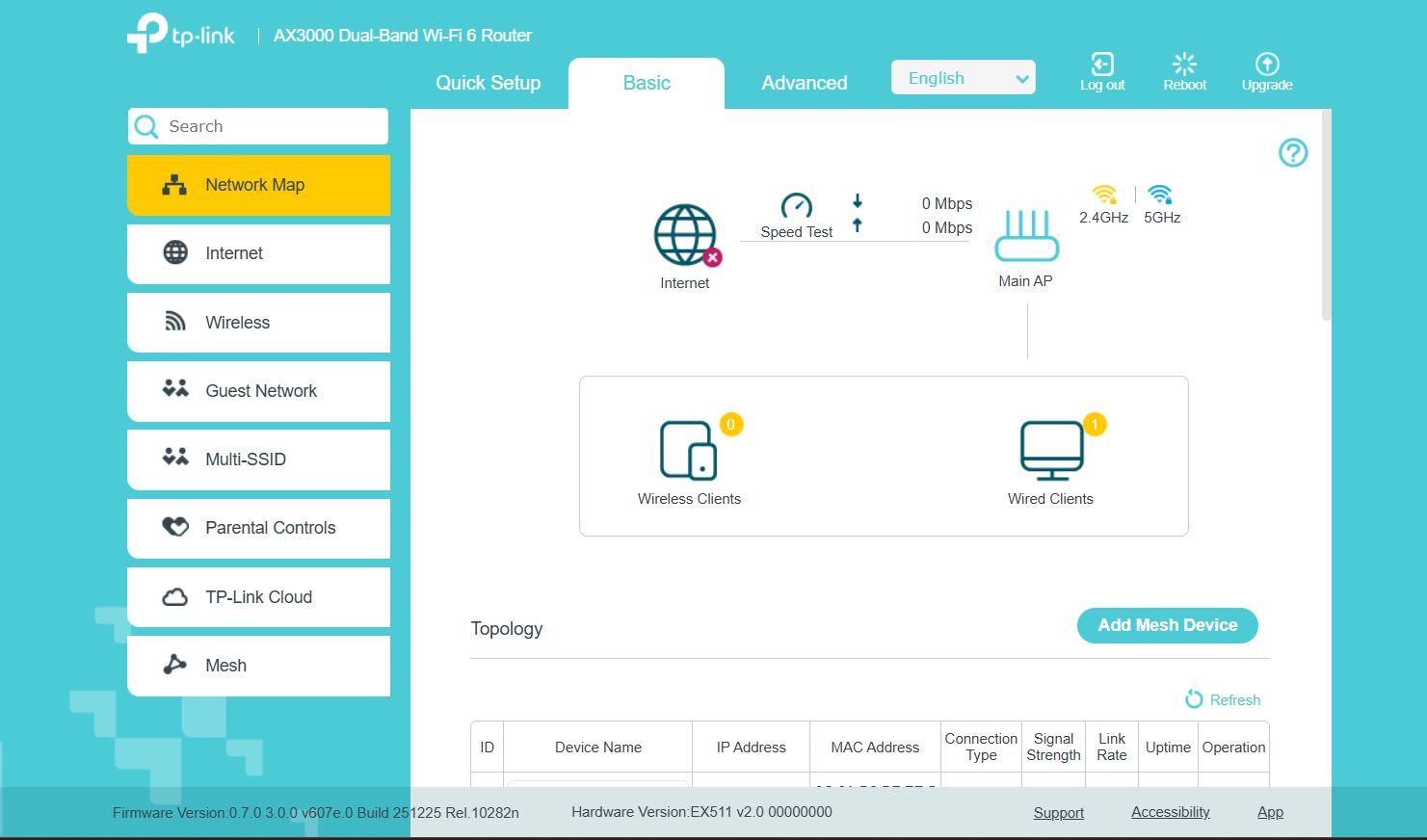
You can then select Quick Setup to begin the router configuration process.
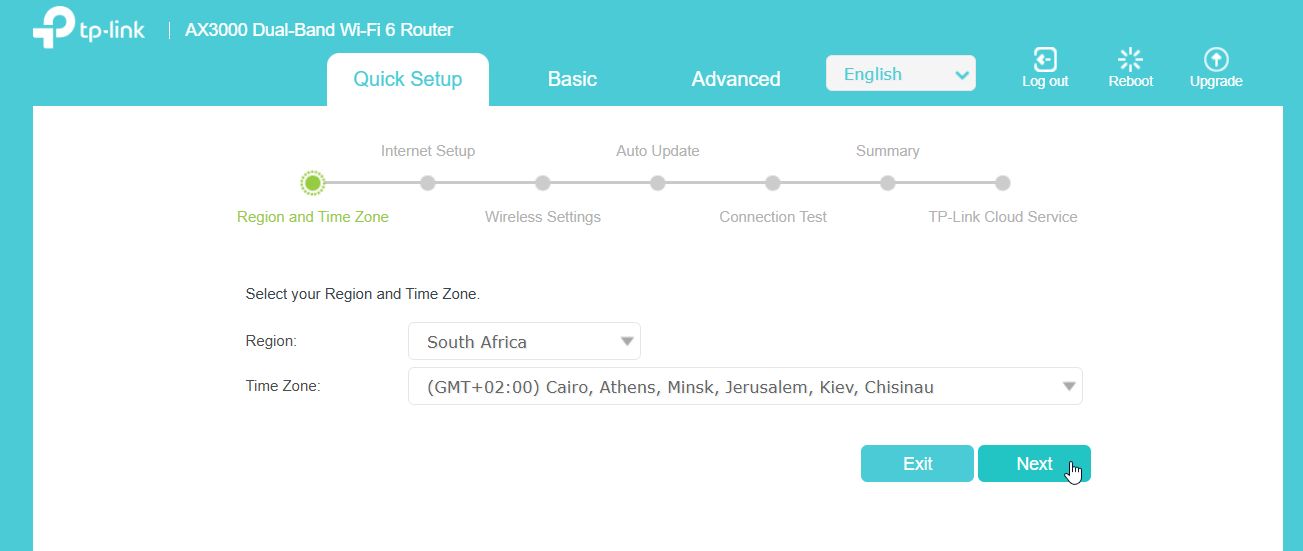
The first step will ask your Time Zone information. You can select the correct Time Zone (South Africa being +02:00), or leave as is for the router to automatically synchronize once setup is completed.
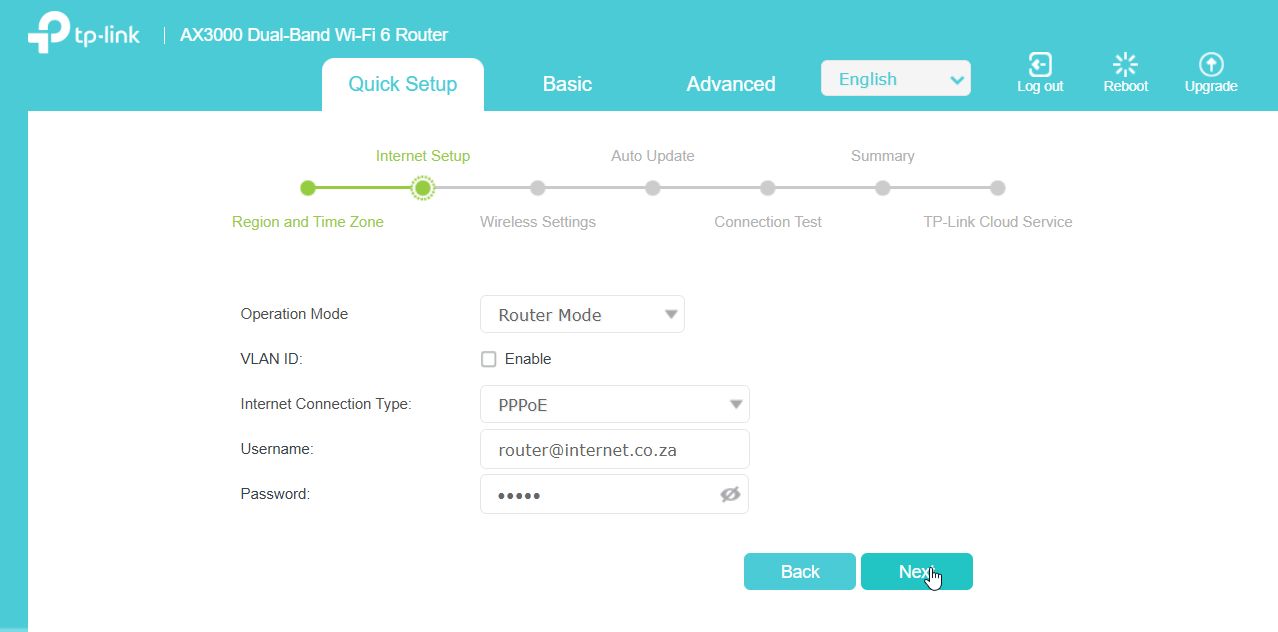
On the next page, you will be prompted to enter the PPPoE username and password sent to you upon signup. Once this information has been entered, they can proceed by clicking Next.
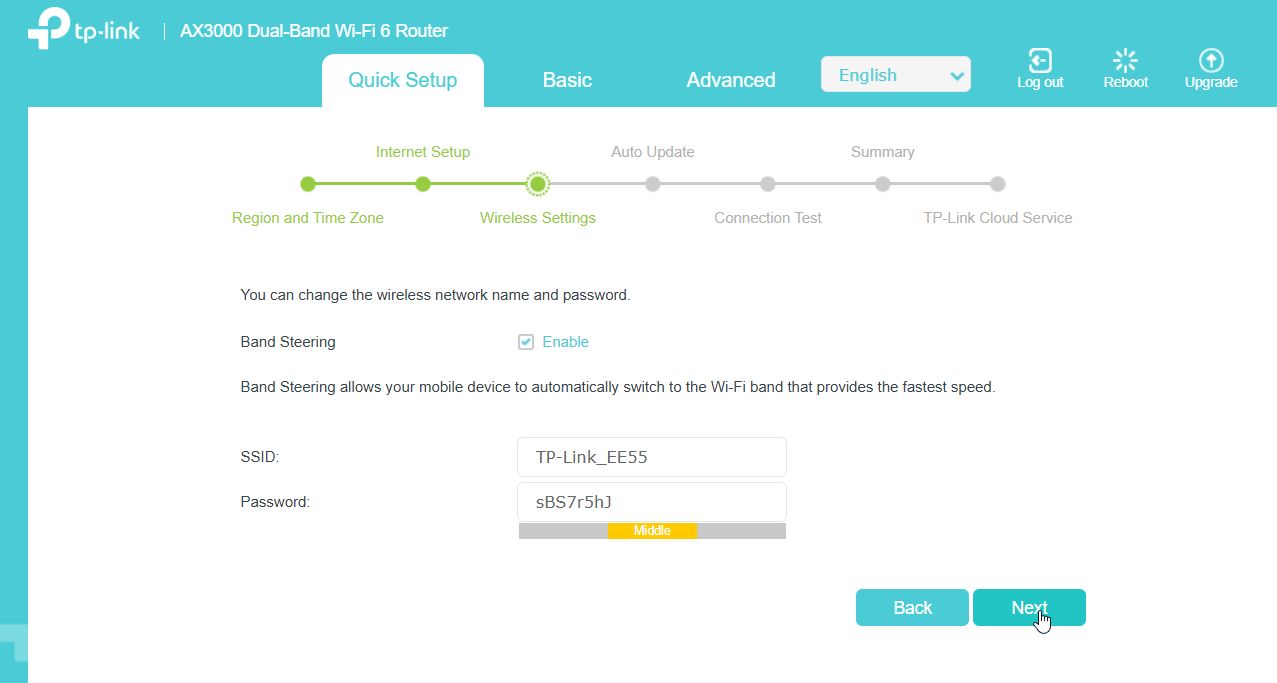
On the next page, you can set your own Wi-Fi name and password & click next.
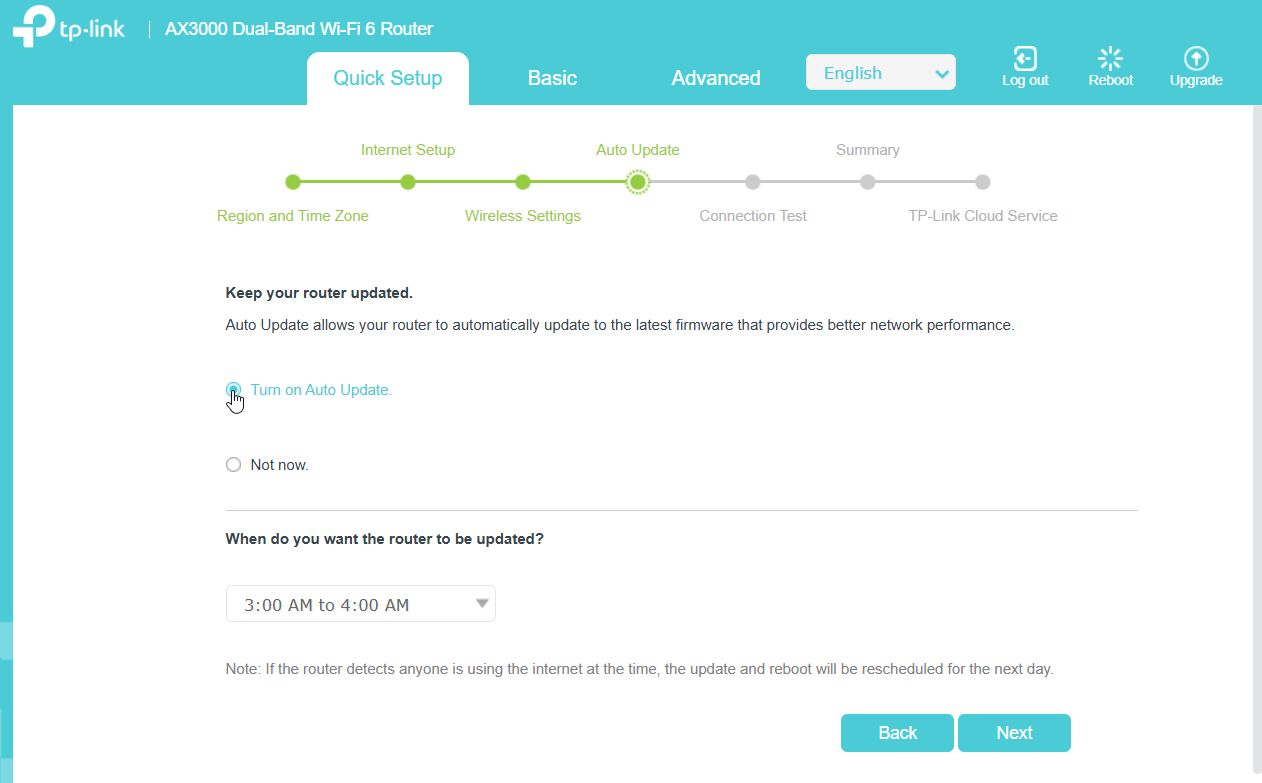
After entering your chosen Wifi details, you will be presented with the router’s automatic update settings. The default update time is outside of normal hours which is the best time for updates to occur.
Once you click Next, a connection test will be performed to verify the entered username and password and to confirm a successful internet connection.
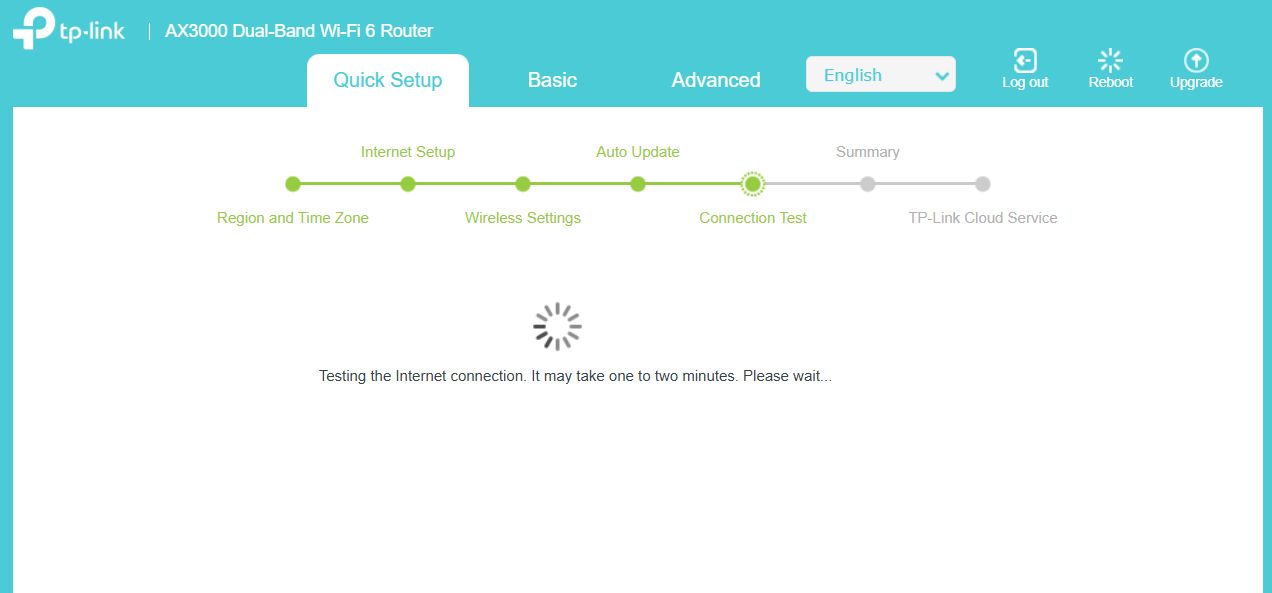
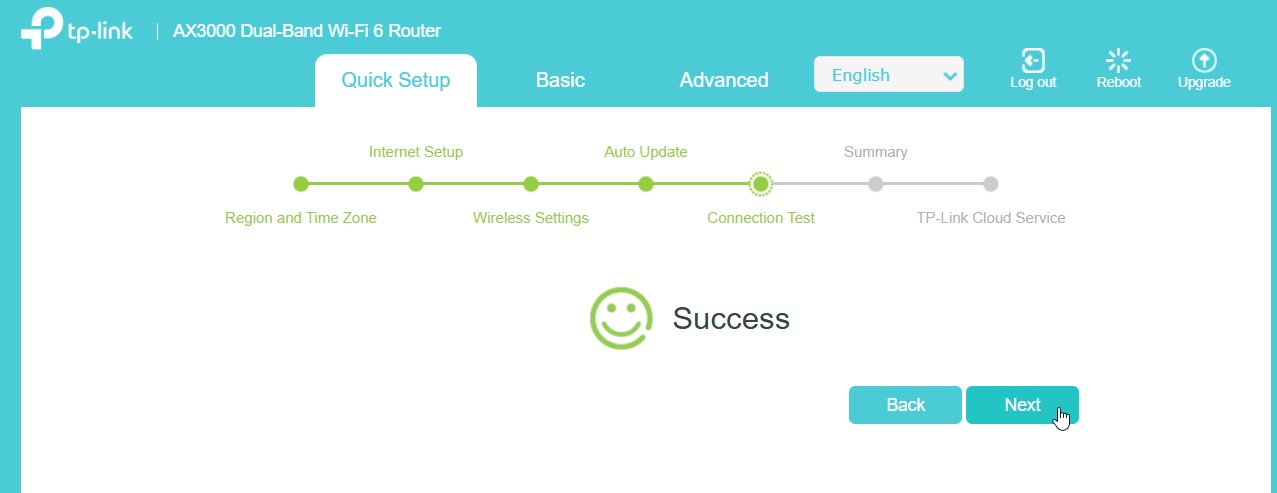
Once the connection test is successful you can proceed to click on next to get to the final summary page. Then click next to complete the setup.